
Before installing the Deposit Plugin, make sure WooCommerce is already installed and activated on your WordPress website. Since the plugin extends WooCommerce’s payment functionality, it will not work without WooCommerce.
Follow these steps to install the Deposit Plugin from the WordPress Plugin Directory:
- Log in to your WordPress Admin Dashboard.
- Navigate to Plugins → Add New Plugin.
- In the search bar, type Deposit.
- Locate the Deposit plugin in the search results.
- Click Install Now.
- Once the installation is complete, click Activate.
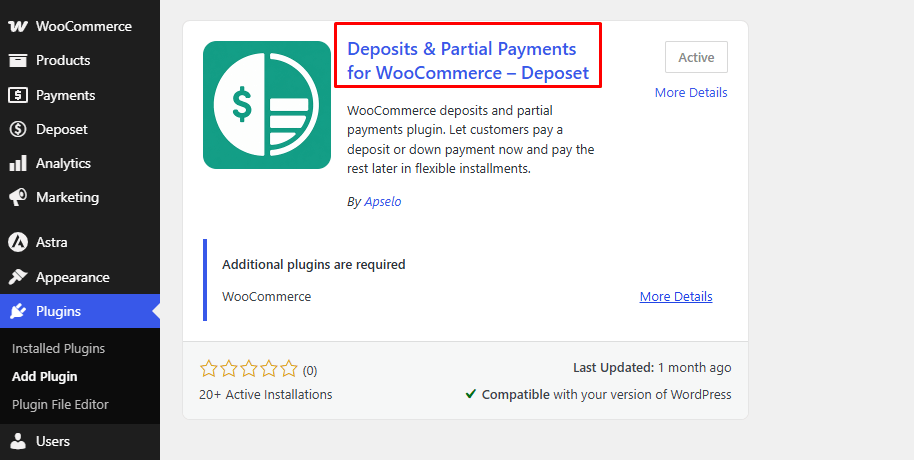
After activation, a new Deposit menu will appear in your WordPress dashboard, where you can configure deposit settings, create deposit rules, and manage partial payments.
Note: If WooCommerce is not installed or activated, install and activate it first. The Deposit Plugin depends on WooCommerce to manage products, orders, checkout, and payment functionality.
Verify the Installation #
To ensure the plugin has been installed successfully:
- Go to Dashboard → Deposit.
- Confirm that the Settings, Rules, and other Deposit options are available in the left-hand menu.
- You are now ready to configure the plugin and start accepting deposits or partial payments in your WooCommerce store.


