
The floor plan turns Reservics from “how many seats are free?” into “which table is this booking on?”. You draw your room once, and every booking is automatically placed on a table that actually fits the party. On service day, the Live floor board shows you the room in real time.
Where to find it #
- Open Floor plan in the left-hand app navigation (just under Locations).
- The floor plan is per location. Use the location switcher at the top to pick which room you’re editing.
- You can also jump straight to a location’s floor plan from Locations → (a location) → the “Seat capacity” tile.
Each location has two views, toggled top-right:
| View | What it’s for |
|---|---|
| Layout editor | Design the room: add tables, set seats, group them into zones. |
| Live floor | Run service: see who’s seated where, right now, and move bookings around. |
Layout editor #
Add a table #
In the left rail, under Add table, click a shape:
- ◯ Round — cozy 2–4 seats
- ▢ Square — a standard 4-top
- ▭ Rectangle — a long table for 6+, or for joining
The table drops into the middle of your current view. Drag it where it belongs. Each table shows a grey “chair” glyph for every seat, so a 6-seat table looks like a 6-seat table.
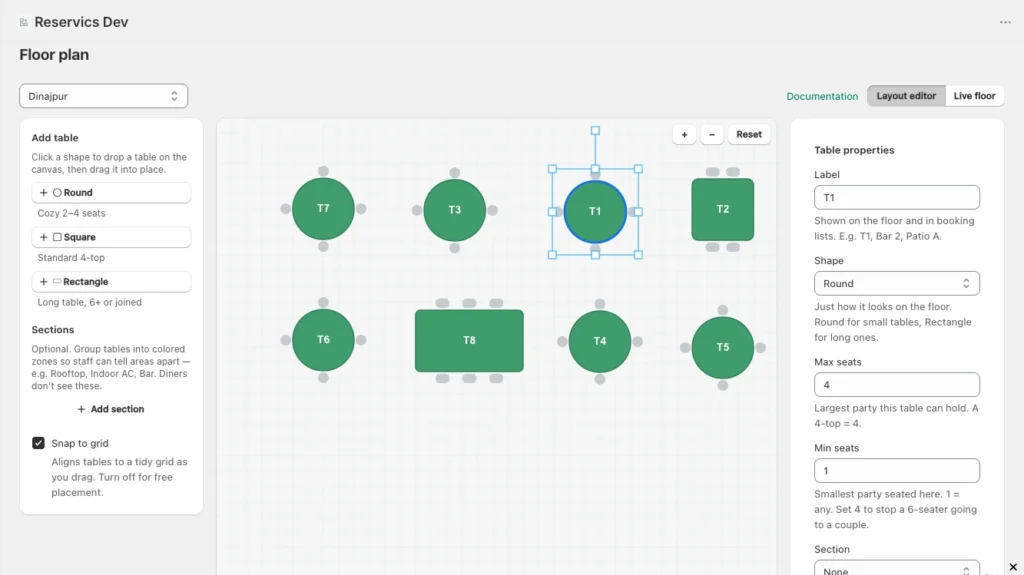
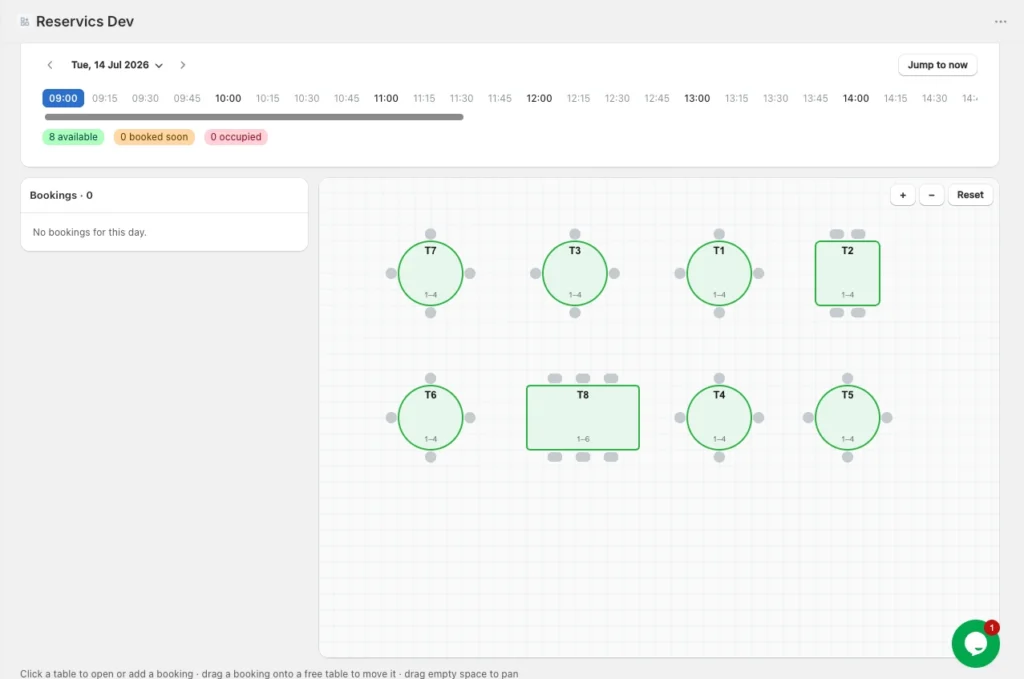
Table properties #
Click any table to open its properties in the right rail:
| Field | What it does |
|---|---|
| Label | The name shown on the floor and in booking lists (e.g. T1, Bar 2, Patio A). |
| Shape | Round / Square / Rectangle — purely how it looks. |
| Max seats | The largest party this table can hold. A 4-top = 4. |
| Min seats | The smallest party the auto-assigner will seat here. 1 = any. Set it to 4 to stop a 6-seater being wasted on a couple. |
| Section | Which zone the table sits in (see Sections below). |
| Allow multiple parties | Turn on for bar / communal tables where different bookings share the same surface. Leave off for normal tables (one party at a time). |
Sections (zones) #
Sections are optional coloured zones — Rooftop, Indoor AC, Bar — that help your staff tell areas apart at a glance. Add them in the left rail, then assign tables to a section from the table’s Section field. The coloured background appears automatically around the tables you tag. Sections are staff-facing only; diners don’t pick a zone when they book.
Moving, resizing, and cleaning up #
- Move — drag a table.
- Resize / rotate — click a table and drag the square/round handles.
- Zoom — the
+/−buttons top-right; Reset re-centres the view. - Pan — drag an empty part of the canvas.
- Snap to grid — keeps tables tidily aligned as you drag (toggle in the left rail; turn off for free placement).
- Delete — select a table and click Delete table. Any booking currently on it becomes Unassigned (the booking is not deleted).
Saving #
There’s no Save button — the editor saves automatically a moment after each change. The footer shows Saving…, then Saved Ns ago ✓. If a save fails (e.g. you lose connection) it shows Couldn’t save — retrying… and keeps retrying on its own.
How tables change bookings #
Once a location has a floor plan, Reservics stops thinking in raw seats and starts placing bookings on specific tables.
Automatic best-fit #
When a booking comes in, Reservics picks the smallest free table that fits the party, respecting each table’s Min/Max seats. A party of 2 won’t be handed your 8-top if a 2- or 4-top is open.
Joining tables for large parties #
If no single table is big enough, Reservics joins free tables together (up to 4 tables), preferring tables in the same section so the party stays together. A party of 7 might be seated as T1 + T3. Joined tables show as a combined label everywhere (booking list, live floor).
Shareable (bar / communal) tables #
A table with Allow multiple parties on behaves like a seat pool: several bookings can share it up to its Max seats (e.g. a 6-seat bar takes a party of 2 and a party of 3 at the same time). A normal table is locked entirely by one booking for its time window.
No floor plan? Nothing breaks #
If a location has no floor plan, bookings still work exactly as before — Reservics falls back to plain seat-capacity checking and leaves the table unassigned. You can add a floor plan later without disrupting existing bookings.
Live floor #
Switch to Live floor to run service.
- Date + time scrubber (top) — move through the day in your location’s booking-interval steps, or click the date to jump to another day. Jump to now returns to the live moment.
- Status colours — each table is coloured for the scrubbed moment:
- 🟢 Available — free
- 🟠 Booked soon — a booking starts shortly
- 🔴 Occupied — seated now
- Bookings panel (left) — the day’s bookings. Click one to highlight its table(s) and scrub the board to its time.
- Zoom / pan — same controls as the editor.
Seat and move bookings from the floor #
- Click an occupied table → opens that booking to edit.
- Click a free table → starts a new booking already pre-filled with that location, the date/time you’re viewing, and that table.
- Drag a booking token onto another free table → reassigns it. If the target is too small or already taken, the move is rejected and the board snaps back.
Reassigning a booking’s table #
Besides dragging on the live floor, you can change a booking’s table from its detail page: open the booking and use the Table dropdown. Auto-assign is the default; pick a specific table to lock it there.
If a table is too small for the party, the move is refused with a message like “Table T2 seats 1–2 — not suitable for a party of 3.” The table being empty doesn’t matter — the party has to fit.
FAQ & troubleshooting #
A table is empty but I can’t assign my booking to it.
The table is smaller than the party. Reassignment (and auto-assign) only allow a table whose seat range fits the party size. Move the booking to a bigger table, join tables, or raise that table’s Max seats.
My location shows “0 tables”.
You haven’t placed any tables for that location yet. Open the Layout editor for that location and add some.
Can I make a 12-seat table if my max party size is 8?
Yes. Table seats (1–50) and your location’s party-size cap are independent — a 12-seat table is fine. Just keep the table’s Min seats at or below your party cap, otherwise no booking will ever be large enough to use it.
The Live floor says “No tables yet”.
That location has no tables placed. Build the layout in the Layout editor first.
Do diners see my sections / table features?
No. Sections and table settings are staff-facing. Diners only choose date, time, and party size; Reservics does the table placement.


