
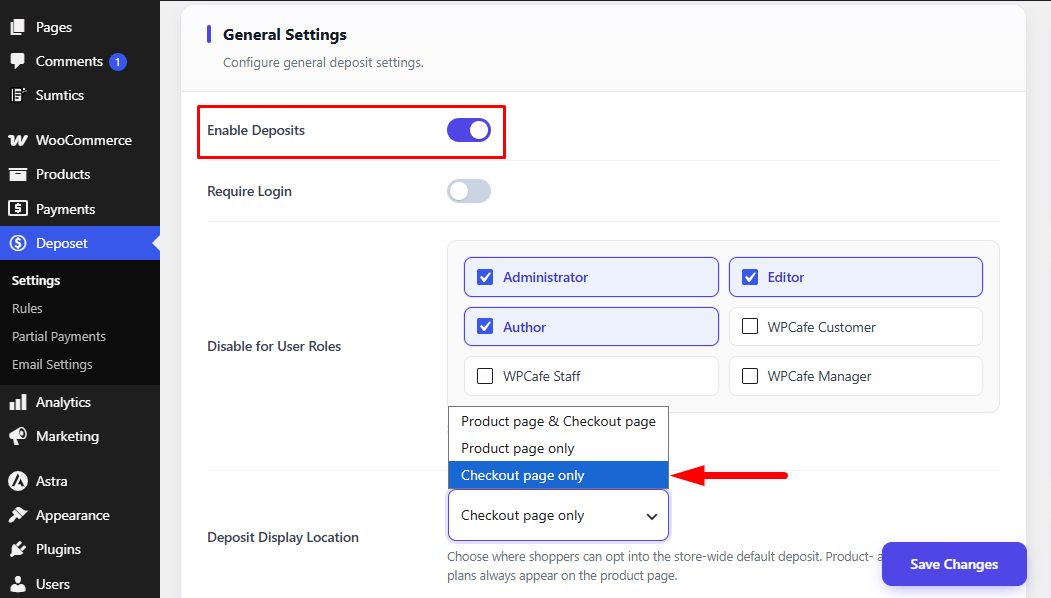
The General Settings section allows you to configure the default behavior of the Deposit Plugin across your WooCommerce store. From here, you can enable deposits, control who can use the feature, choose where the deposit option is displayed, and configure payment-related settings.
Navigate to Deposit → Settings to access these options.
- Enable Deposits: Enable this option to allow customers to purchase products using deposits or partial payments.
- Require Login: Turn on this option if you want only logged-in users to place orders using deposits. Guests will be required to log in before using the deposit feature.
- Disable for User Roles: Select one or more WordPress user roles to prevent them from using the deposit payment option. Users assigned to the selected roles will not be able to place orders using deposits or partial payments.
- Deposit Display Location: Choose where the deposit payment option will be displayed. You can display it on the Product Page, the Checkout Page, or on both pages, allowing customers to select their preferred payment option during their shopping journey.
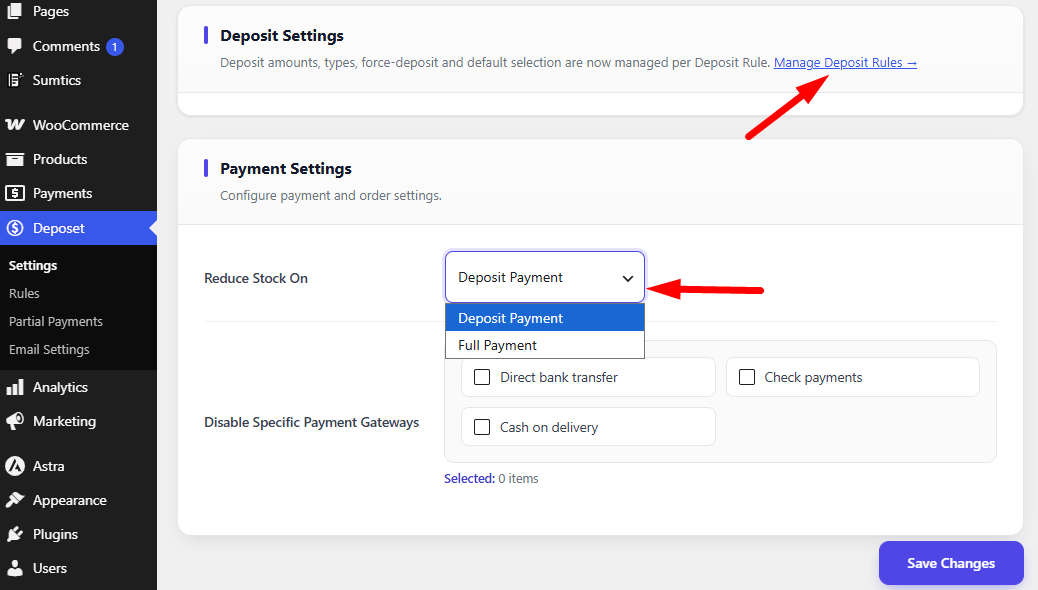
- Deposit Settings: Deposit amounts, deposit types, force deposit, and default payment selection are managed through Deposit Rules instead of the General Settings page. Click Manage Deposit Rules to create or modify deposit rules.
- Reduce Stock On: Choose when product stock should be reduced in WooCommerce. You can reduce stock when a customer makes the Deposit Payment or wait until the Full Payment is completed, depending on your store’s inventory management strategy.
- Disable Specific Payment Gateways: Select the payment gateways that should not be available when customers choose the deposit payment option. This helps you restrict payment methods that are not suitable for partial payments.
Note: The settings configured here act as the default behavior for your store. If a product or category has its own Deposit Rule, that rule will override the corresponding default settings where applicable.


