
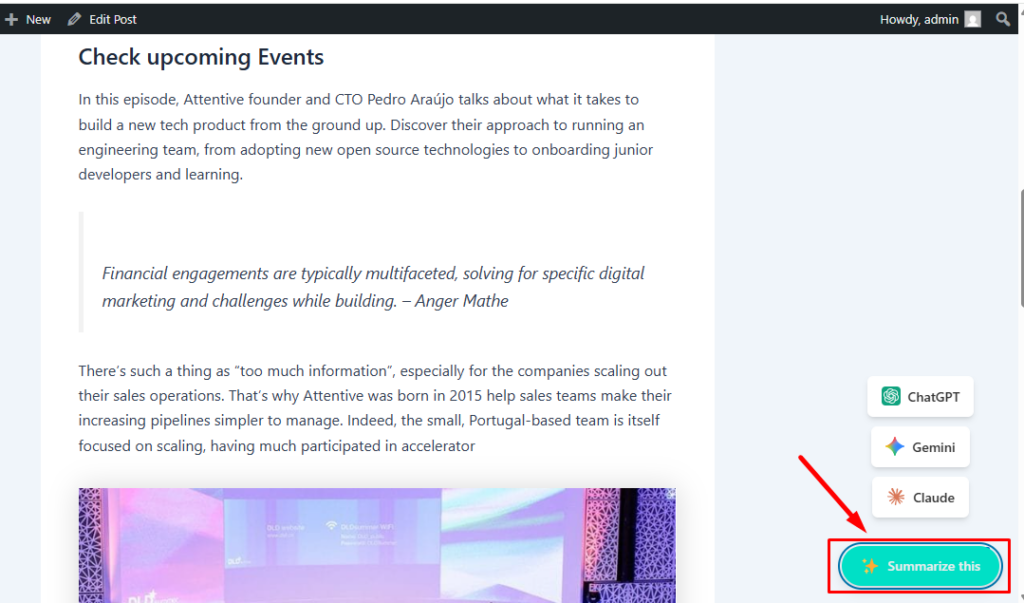
The Floating Button adds a floating AI action button to your website, allowing visitors to quickly open their preferred AI service and summarize the current page. When clicked, the button expands to display the AI models you have enabled in the External Summary settings.
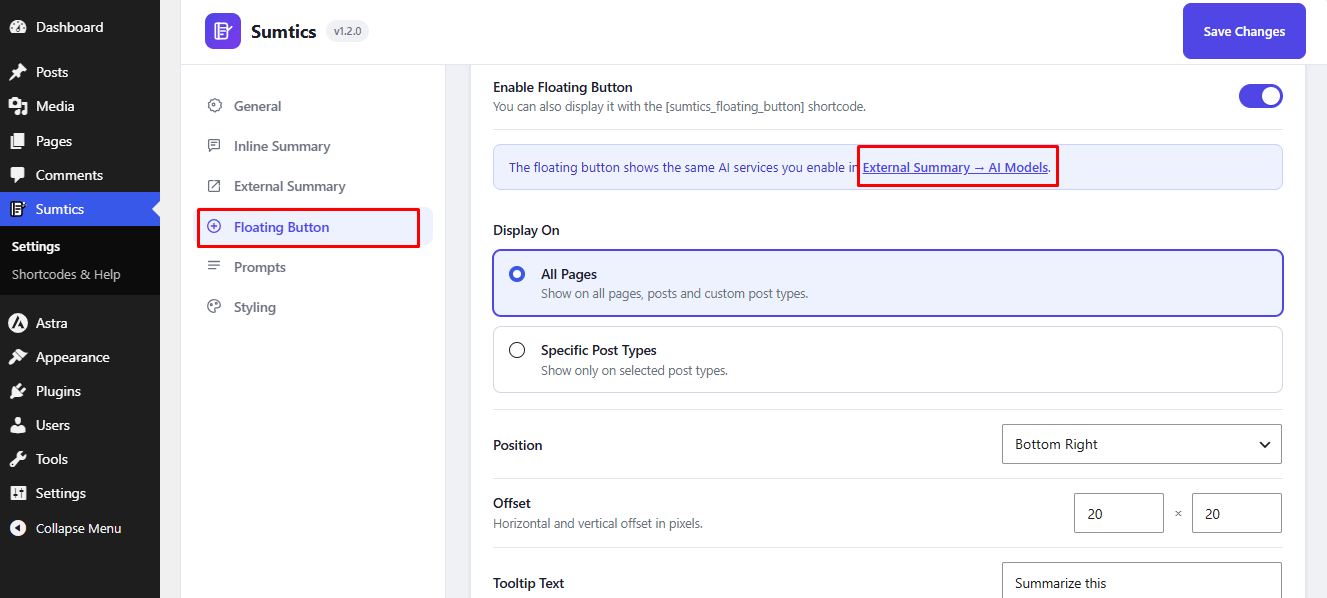
To configure the Floating Button, navigate to: Sumtics → Floating Button
Enable the Floating Button #
Enable the Enable Floating Button option to display the floating AI button on your website.
If you don’t want to display it automatically, you can add it anywhere using the following shortcode:
[sumtics_floating_button]Note: The Floating Button displays the same AI models selected under Sumtics → External Summary → AI Models.
Configure Display Settings #
Choose where you want the floating button to appear.
- All Pages – Display the floating button across your entire website.
- Specific Post Types – Display the button only on selected post types.
Position & Appearance #
Customize the floating button to match your website layout:
- Position – Choose where the floating button appears on the screen (default: Bottom Right).
- Offset – Adjust the horizontal and vertical spacing from the edge of the screen using pixel values.
- Tooltip Text – Customize the text displayed when visitors hover over the button (default: Summarize this).
After configuring the Floating Button settings, click Save Changes to apply your changes. Visitors will now be able to access the enabled AI services from the floating button anywhere on your website.
Front-end view: #
FAQs #
Q1. Can I display the Floating Button only on specific content?
A: Yes. You can choose to display the Floating Button on all pages or limit it to specific post types from the Display Settings.
Q2. Which AI models are shown in the Floating Button?
A: The Floating Button displays the same AI models that you have enabled under Sumtics → External Summary → AI Models.
Q3. Can I customize the Floating Button’s position and tooltip?
A: Yes. You can choose the button position, adjust its horizontal and vertical offset using pixel values, and customize the tooltip text displayed when visitors hover over the button.


